Blog

Your blog category

Blog

How to Run Your First Google Ads Campaign: A Beginner’s Guide

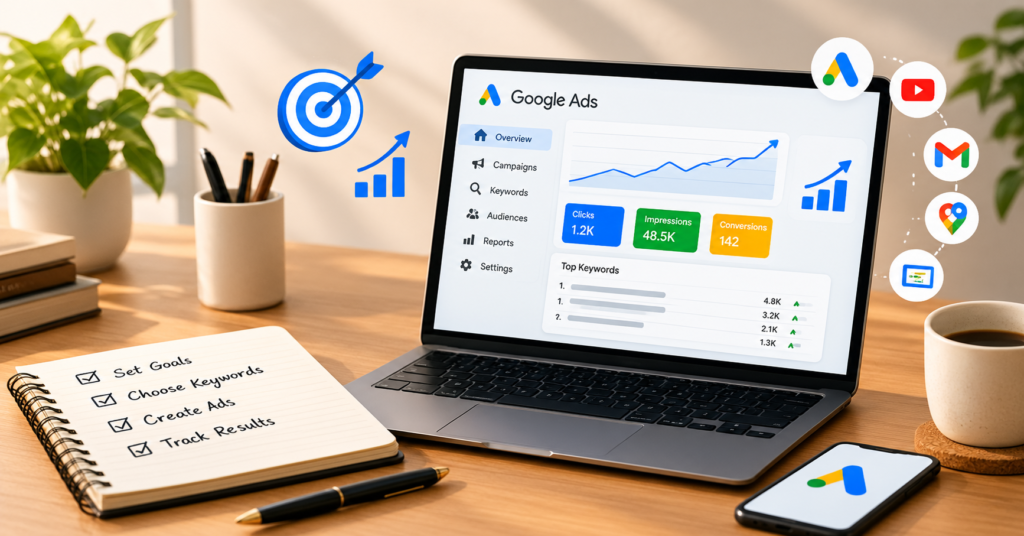
Every single day, millions of people type questions and product searches into Google. When you show up at the point someone is ready to buy, your business wins a customer for life without having to chase them. That’s the promise of paid search advertising. But the platform can be intimidating at first, with confusing jargon, endless settings, and the fear of wasting money. This Google Ads for beginners guide makes the process easy and practical in a series of simple steps. By the end, you’ll know how the platform works, how to plan a budget, and how to launch your first campaign with confidence. What Is Google Ads and How Does It Work? Google AdWords is the advertising platform by Google. Through it, one can create advertisements that appear on Google Search, YouTube, Gmail, as well as millions of partner sites. Typically, beginners begin with search ads, or text advertisements, which appear above organic listings when somebody looks for something such as “Plumber near me”.One of the key features of the platform is the pay-per-click (PPC) option, where one pays only when their ad is clicked, not viewed. Such an option explains why Google Ads for beginners is so widely discussed by businesspeople and freelancers. How the Ad Auction Works Google conducts an auction every time somebody searches to determine who pays for what and where on Google. Your placement in the auction depends largely on the amount of your bid and your Quality Score, which is a ranking of the relevancy of your ad, keyword, and your landing page. With a great ad, you may easily outrun a larger budget. Types of Google Ads Campaigns Google offers several campaign types, each with a different purpose: Search : text ads on search results, ideal for people actively looking.Display: image ads across websites and apps.Video: ads on YouTube.Shopping: product listings with images and prices, built for online stores.Performance Max: Automated ads running across every Google platform. Search is the easiest place to begin, and most advice on Google Ads for beginners recommends it because it is simple to control and measure. Set Clear Goals and a Realistic Budget Jumping into the dashboard without a plan is the fastest way to burn money, so prepare first. Define One Clear Goal Decide what a successful click looks like: A phone callA form submissionA purchaseA booking Select a single main objective for your initial campaign, as targeted efforts consistently produce better results than overly broad ones. Decide on a Daily Budget Many new advertisers begin with $10 to $20 per day.Watch how the campaign performs before spending more.The golden rule of Google Ads for beginners: start small, learn from real data, and scale only what works. How to Set Up Your First Campaign: Google Ads for Beginners, Step by Step Follow these six steps in order. Step 1: Create Your Google Ads Account Sign in at ads.google.com using your Google account. Google may push you toward a simplified, automated setup.For full control over keywords, ads, and targeting, choose the option to skip the guided flow and build the campaign manually. Step 2: Choose Your Campaign Goal and Type Select a goal that matches your objective, such as leads, sales, or website traffic.Choose Search as your campaign type.Give the campaign a clear name, like “Custom Cakes – Search,” so it is easy to find later Step 3: Set Location, Language, and Bidding Strategy Where and how you bid decides how far your budget goes. Target only the areas you actually serve. A local bakery does not need clicks from another country.Select the language your customers use.Start with Maximize Clicks to gather data.Move to Maximize Conversions once tracking has collected enough results.This gradual approach is a smart habit for anyone learning Google Ads for beginners. Step 4: Research and Choose Your Keywords Keywords are the search terms that trigger your ads, and they are the foundation of every campaign. Use the free Keyword Planner inside your account to find ideas, search volumes, and estimated costs.Choose specific, high-intent phrases like “order birthday cake online” instead of broad ones like “cake.”Start with 10 to 20 closely related keywords in one ad group.Add negative keywords such as “free” or “jobs” to block irrelevant searches. Step 5: Write Ads That Get Clicked Most campaigns use Responsive Search Ads, where you supply up to 15 headlines (30 characters each) and 4 descriptions (90 characters each). Google then tests combinations for you. For stronger ads: Use the free Keyword Planner inside your account to find ideas, search volumes, and estimated costs.Choose specific, high-intent phrases like “order birthday cake online” instead of broad ones like “cake.”Start with 10 to 20 closely related keywords in one ad group.Add negative keywords such as “free” or “jobs” to block irrelevant searches. Step 6: Build a Landing Page and Track Conversions Your ad makes a promise, and your landing page must keep it. A good landing page: Matches the message of the adLoads fastWorks well on mobileHas one obvious next step Then set up conversion tracking with the Google tag or Google Tag Manager. Most people skip this step, which is why they cannot tell whether their Google Ads for beginners efforts are working. Understanding Keyword Match Types Match types control how closely a search must relate to your keyword. Broad match offers the maximum reach by displaying your ad for any related searches.Phrase match (“keyword”) targets searches that include the core meaning of your keyword,while Exact match ([keyword]) limits reach strictly to searches with the exact same meaning..New advertisers usually do best with phrase and exact match because spending stays tightly controlled.Once you have data, you can test broad match with automated bidding.Learning match types is a core part of Google Ads for beginners, since the wrong choice can quickly drain a small budget. Common Mistakes to Avoid Avoid these errors, and you will be ahead of many people who give up after a week: Sending traffic to your homepage: a dedicated landing page converts


Blog

Website Traffic Dropping? 10 Hidden SEO Mistakes to Fix in 2026

Quick answer: Most traffic drops aren’t caused by one big penalty — they come from small, hidden SEO mistakes: pages Google won’t index, thin or duplicate content, weak internal links, slow mobile pages, and titles that don’t match what people search. Each one below includes how to find it in Google Search Console and how to fix it. Table of contents Pages Google crawled but didn’t index Thin, generic content Orphan pages with no internal links Title tag and H1 that don’t match search intent Accidental noindex or robots.txt blocks Too many low-value URLs (tags, archives, feeds) Sitemap errors Slow mobile pages and poor Core Web Vitals Outdated content No signs of real experience (E-E-A-T) FAQ 1. Pages Google crawled but didn’t index How to find it: Search Console → Indexing → Pages → “Why pages aren’t indexed”. Look for Crawled – currently not indexed and Discovered – currently not indexed. Why it hurts: A page that isn’t indexed can’t get any Google traffic, no matter how good your keywords are. How to fix: Improve the content (see mistakes 2 and 10), add internal links to it, then use URL Inspection → Request indexing once. Repeated requests don’t speed it up. 2. Thin, generic content How to find it: Look at pages with impressions but almost no clicks (Performance report), or pages that aren’t indexed. Ask: “Does this page say anything the top 10 results don’t?” Why it hurts: Google has plenty of near-identical articles on most topics. If yours adds nothing new, it may not be indexed at all. How to fix: Add original examples, screenshots, data, steps you’ve actually tested, and a clear answer at the top. Merge several weak posts on the same topic into one strong post and redirect the old URLs. 3. Orphan pages with no internal links How to find it: Search Console → Links → Internal links. Pages with 0–1 internal links are at risk. Why it hurts: Internal links tell Google which pages matter. A post only reachable through the sitemap looks unimportant. How to fix: Link every new post from 3–5 related posts using descriptive anchor text, and show recent posts on your homepage. For example, if you’re building a career in this field, see how to become a digital marketing freelancer step by step. 4. Title tag and H1 that don’t match search intent How to find it: Performance report → Queries. Compare what people actually search with your page title. Why it hurts: Mismatched titles lower click-through rate, and mixed signals make it harder for Google to understand the page. How to fix: Put the main keyword near the start of the title, keep the SEO title and H1 consistent, and make the title promise exactly what the page delivers. 5. Accidental noindex or robots.txt blocks How to find it: URL Inspection → “Indexing allowed?” and “Crawl allowed?”. In WordPress, check Settings → Reading → “Discourage search engines from indexing this site” is unticked. Why it hurts: One wrong checkbox in an SEO plugin can hide a page — or a whole site — from Google. How to fix: In Rank Math or Yoast, set posts and pages to “Index”. Make sure robots.txt doesn’t disallow important folders. 6. Too many low-value URLs (tags, archives, feeds) How to find it: In the Pages report, look for URLs ending in /feed/, /tag/, /author/, /page/2/ or date archives. Why it hurts: Hundreds of thin auto-generated URLs waste crawl attention and dilute the overall quality of a small site. How to fix: Set tag, author and date archives to noindex in your SEO plugin, and keep crawlers out of comment feeds (Yoast → Settings → Advanced → Crawl optimization, or add Disallow: /*/feed/ to robots.txt). Feed URLs showing as “not indexed” are normal and safe to ignore. 7. Sitemap errors How to find it: Search Console → Sitemaps. Status should be “Success”. Why it hurts: A broken sitemap slows discovery of new posts. How to fix: Submit only your main sitemap (for example sitemap_index.xml). If it shows an error, open the sitemap URL in your browser to confirm it loads, then remove and resubmit it. Make sure it lists only indexable URLs. 8. Slow mobile pages and poor Core Web Vitals How to find it: Search Console → Core Web Vitals, or test a page in PageSpeed Insights. Why it hurts: Google crawls with a smartphone crawler. Slow, jumpy pages give visitors a poor experience and can hold rankings back. How to fix: Compress images (WebP), use a caching plugin, remove unused plugins, and choose a lightweight theme. 9. Outdated content How to find it: Performance report → compare the last 3 months with the previous period and sort pages by clicks lost. Why it hurts: Old stats, dead links and outdated advice push readers — and rankings — to fresher competitors. How to fix: Update facts, screenshots and examples, add new sections, fix broken links, and only then change the “updated” date. 10. No signs of real experience (E-E-A-T) How to find it: Read your post as a stranger. Is there any proof a real person with experience wrote it? Why it hurts: Google’s guidelines value Experience, Expertise, Authoritativeness and Trust. Anonymous, proof-free content is easy to ignore. How to fix: Add an author box with your photo and background, an About page, a contact page, and first-hand examples and screenshots in every post. Quick SEO health checklist Pages report checked for “not indexed” reasons Every post has 3+ internal links pointing to it SEO title and H1 match the main search query No accidental noindex; “Discourage search engines” unticked Tags, archives and feeds set to noindex Sitemap status: Success Mobile PageSpeed checked Top posts updated in the last 6–12 months Author box and real examples on every post FAQ Why did my website traffic suddenly drop? Common causes are a Google core update, pages dropping out of the index, technical changes (noindex, redirects, a new theme), or competitors publishing better

Blog

How to Become a Digital Marketing Freelancer in 2026: 7 Steps

Quick answer: To become a digital marketing freelancer, pick one service you can deliver well (like SEO or Meta ads), learn it through real practice, build 2–3 proof projects, set a clear package price, and pitch a small number of the right clients every day. Many beginners who follow this consistently land a first paying client within 1–3 months. Table of contents Choose one service (your niche) Learn by doing, not just watching Build proof before you have clients Set up your freelancer toolkit Price your services Find your first clients Deliver, get reviews and scale FAQ Step 1: Choose one service (your niche) The biggest beginner mistake is offering “all digital marketing services”. Clients don’t hire generalists they don’t know — they hire someone who solves one specific problem. Start with one service, and ideally one type of client. Service Good for you if… Typical client SEO You like writing, research and slow, compounding results Local businesses, blogs, service companies Social media management You’re creative and consistent with content Cafés, salons, clinics, coaches Meta / Google Ads You like numbers and quick testing E-commerce stores, real estate, education Content writing / copywriting You write clearly and quickly SaaS, agencies, personal brands Email marketing You enjoy funnels and automation Online stores, course creators Tip: Combine a service with a niche — “SEO for dental clinics in Kerala” is far easier to sell than “SEO services”. Step 2: Learn by doing, not just watching Free courses are enough to start. What matters is applying each lesson on a real website or account the same week. Free learning: Google Skillshop (Google Ads, Analytics), Meta Blueprint, HubSpot Academy, Semrush Academy, Google’s own Search Central SEO documentation. Practice project: Start your own blog or Instagram page and grow it. It becomes your first case study. Rule: For every hour of learning, spend at least one hour doing. Step 3: Build proof before you have clients Clients pay for results they can see. If you have no clients yet, create proof in other ways: Your own site or page: Show traffic growth from Google Search Console or follower growth from Instagram Insights. Free or low-cost project: Help one local business or friend for 30 days in exchange for a testimonial and permission to share results. Audit samples: Do a free SEO audit or ad account review for a real business and turn it into a portfolio PDF. Put 2–3 of these on a simple portfolio page with: the problem, what you did, and the result (with a screenshot). Step 4: Set up your freelancer toolkit Portfolio: A personal website (like this one) or a Notion / Google Drive portfolio. LinkedIn profile: Headline that states who you help and how — e.g. “SEO for local businesses | More calls from Google”. Freelance platforms: Upwork, Fiverr and Freelancer.com for global clients. Tools: Google Search Console, Google Analytics, Canva, a free keyword tool, Google Sheets for reports. Payments and paperwork: A simple proposal template, a basic contract, and an invoice format. Take an advance (commonly 50%) before starting. Step 5: Price your services Sell monthly packages with clear deliverables instead of hourly rates. It’s easier for clients to say yes and gives you steady income. Service Example monthly package Local SEO Google Business Profile, on-page fixes, 4 blog posts, monthly report Social media 12 posts, captions, basic engagement, monthly report Meta ads Campaign setup, 2 creatives, weekly optimisation, report (ad spend paid separately) Start with a fair beginner price, deliver great results, and raise your prices after every 2–3 successful clients. Step 6: Find your first clients Warm network first: Tell friends, family and past colleagues exactly what you do. First clients very often come from here. Local businesses: Find businesses with weak Google Business Profiles or inactive Instagram pages and send a short, personalised message with one specific improvement. LinkedIn: Post 3 times a week about what you’re learning and doing; comment on posts by business owners in your niche. Freelance platforms: Send 5 tailored proposals a day on Upwork, or create 2–3 specific Fiverr gigs. Simple outreach message: Hi [Name], I noticed [business] isn’t showing in the Google map results for “[service] in [city]”. I help local businesses fix this. I made a quick 3-point checklist for your profile — can I send it over? No charge. Step 7: Deliver, get reviews and scale Send a short monthly report: what you did, results, next steps. Ask every happy client for a written testimonial and a referral. Turn each successful project into a case study on your site. Once you’re fully booked, raise prices, niche down further, or outsource simple tasks. Common beginner mistakes to avoid Offering every service instead of one. Working without an advance payment or written scope. Promising guaranteed rankings or “viral” results. Spending months on courses without doing real projects. Charging too little for too long. If you plan to offer SEO, read the hidden SEO mistakes that kill website traffic — fixing these for clients is one of the easiest ways to show quick results. FAQ Can I become a digital marketing freelancer without experience? Yes. Start with your own project or a free project for a local business so you have proof. Clients care more about results and communication than certificates. How long does it take to get the first client? With daily outreach and 2–3 proof projects, many beginners get their first client within 1–3 months. It depends on your niche and how consistently you pitch. Which digital marketing skill is best for freelancing? SEO, paid ads and social media management are the most in demand. Pick the one you enjoy doing every day, because consistency matters more than the skill you choose. Do I need a website to start freelancing? No, but it helps. A simple portfolio site with case studies builds trust and can bring clients from Google over time. How much can a digital marketing freelancer earn in India? It varies widely by skill, niche and

Scroll to Top